Streamlining Resource Discovery and Reservations
Learn about our recent upgrades to resource discovery and reservations on Chameleon
- Jan. 19, 2026 by
- Paul Marshall
Streamlining Resource Discovery and Reservations
We're excited to shine a spotlight on the recently refreshed hardware discovery browser on Chameleon! Launched a little while ago, this upgrade makes it easier and faster to pinpoint the exact hardware you need for your experiments, connecting you directly to real-time scheduling and reservations.
As you most likely know, Chameleon offers dedicated, reservable resources. That means your work gets exclusive access to the nodes you choose but navigating hardware specs and reservation calendars together can sometimes be a bit of frustration.
The new resource discovery experience helps you link "what hardware am I getting?" with "when can I actually run?" into a more streamlined workflow than previously.
What's New in Resource Discovery?
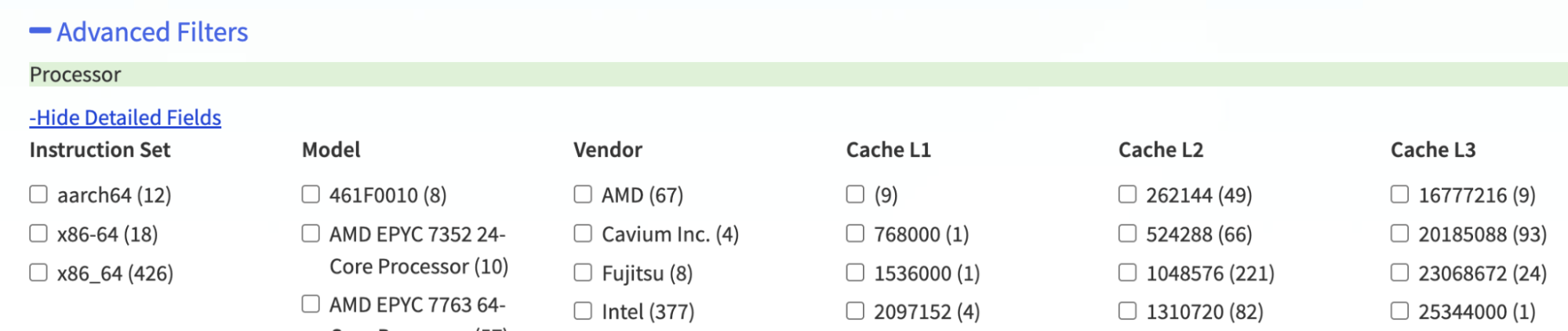
- Simplified UI: Instantly search and filter hundreds of nodes by CPU type, RAM, storage sizes, accelerators (GPUs/FPGAs), network, and more, in a simplified interface with very detailed information hidden initially. For those of you who need that detailed information, don't worry! It's still there, you just have to expand the view (Click +Advanced Filters, then click +Show Detailed Fields):
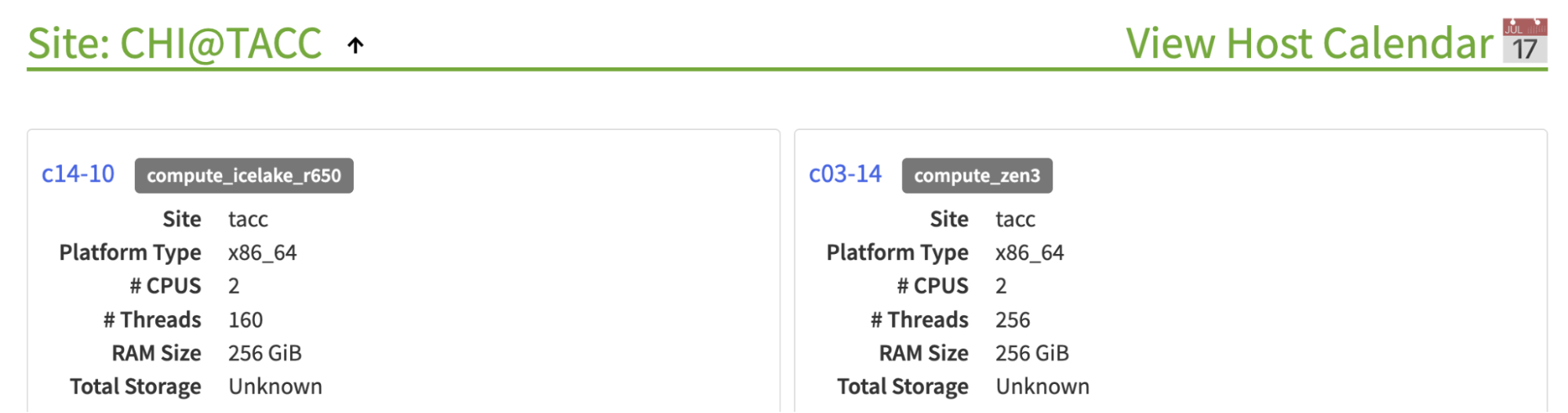
- Host Calendar Links: Every site listed in the node browser now comes with a direct link to its live reservation calendar in the Chameleon dashboard (login required) by clicking on "View Host Calendar":

- Availability & Reservation Buttons: On each node's detail page, you can immediately check its real-time availability and reserve it in a single click, which also takes you into the Chameleon dashboard (again, login required): the calendar for "Check Availability" or to the node reservation page with the node pre-selected for "Reserve Node":
For example, once you click on "Reserve Node" and login, you'll be able to give the lease a name, choose the lease length, and when you click next you'll notice the filter already applied for your node:
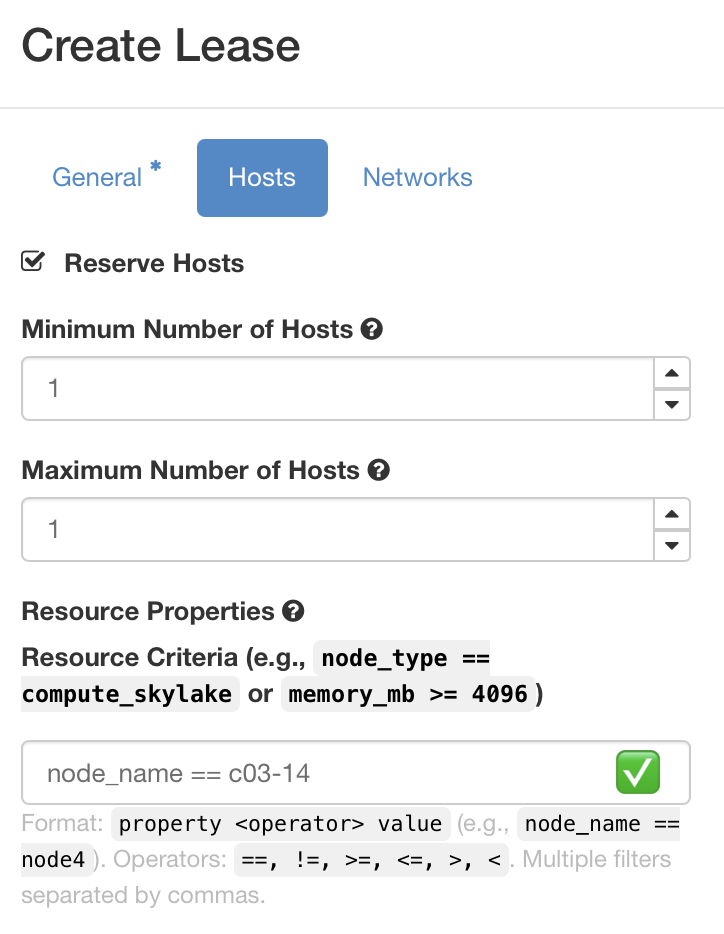
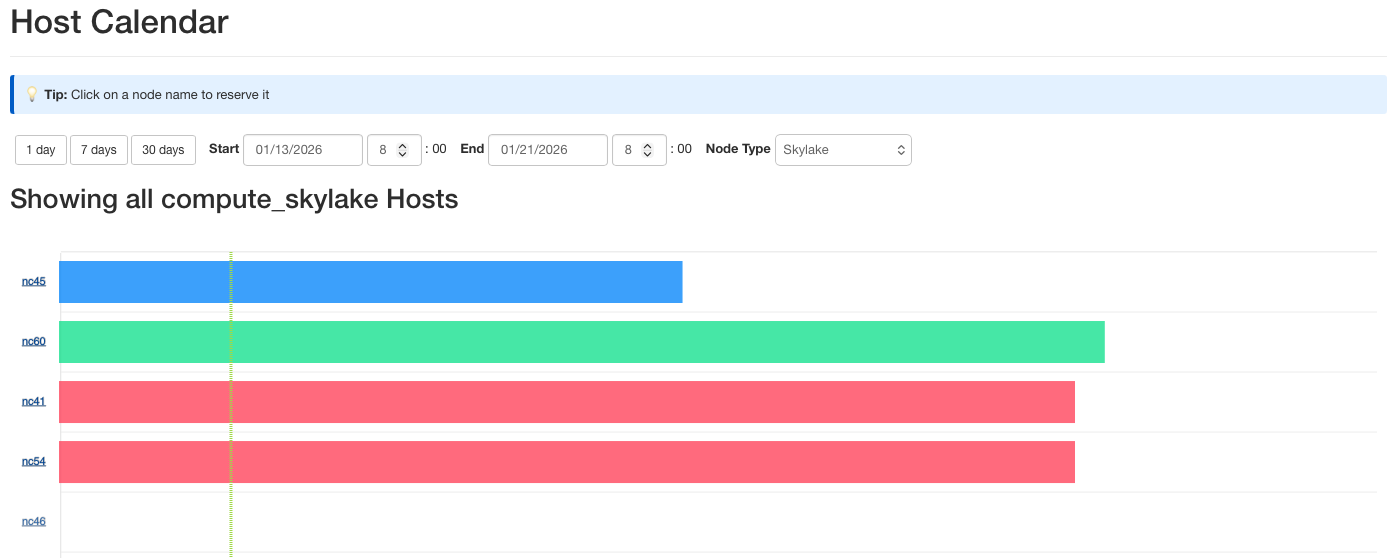
- Reserve directly from the calendar: if you are in the calendar view and you see an available node that you want to reserve, you can click on the node name (e.g. nc46 in the image below), it will pre-set the node name in the filter similar to the case in the image above showing node c03-14.
With these changes, it's easier than ever to answer:
Can I get my required hardware and is it available when I need it?
Example Use Case: NVDIMM
Now that you've seen how easy it is to filter and reserve hardware, let's take a closer look at the hardware browser using an example.
Let's say you're researching persistent key-value stores for ultra-fast, crash-resilient data access. For example, you're developing or benchmarking storage engines like RocksDB. These experiments need persistent memory that combines the speed of RAM with the durability of storage, letting your data survive reboots and failures without sacrificing performance.
To set this up, start by identifying nodes equipped with Intel Optane persistent memory (NVDIMM) using the hardware browser. Just filter for nodes with 3840 GiB RAM, which ensures you have the capacity for cutting-edge persistent storage software:
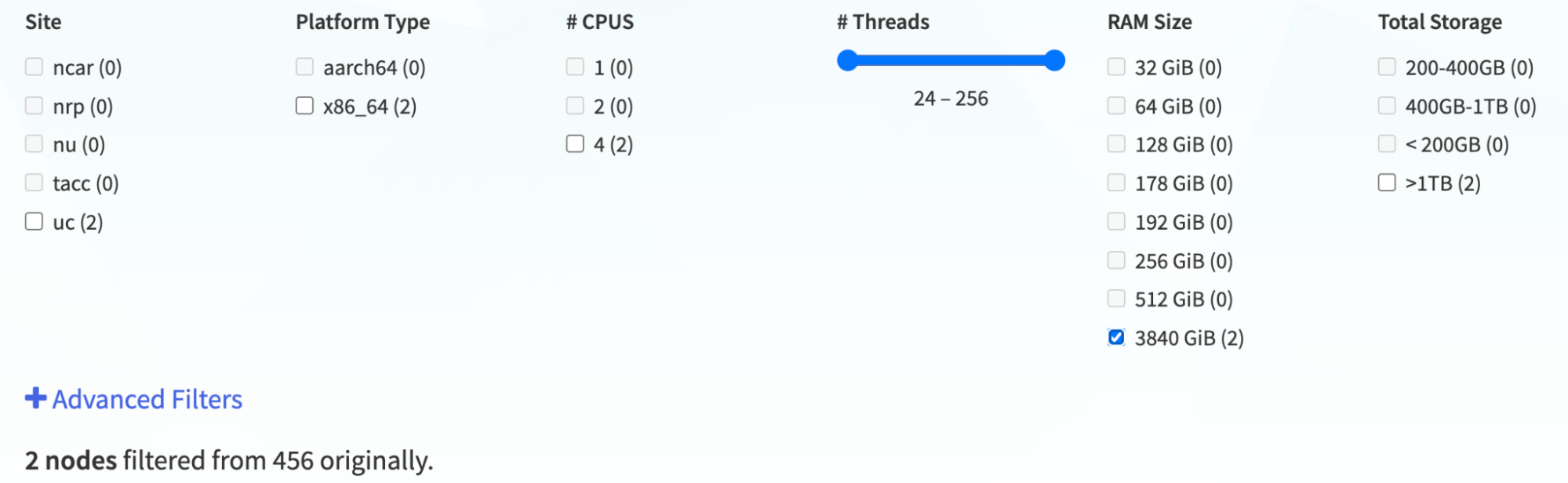
Once you've found the right nodes, you'll want to check when they're available. Head to the node's detail page to open the site's availability calendar. With just a few clicks, you'll know when you can reserve the hardware and start your experiment.
A couple of notes about NVDIMM:
First, it is available in two modes:
- Memory Mode: DCPMM modules appear as large, albeit slightly slower, standard RAM. Perfect for experiments needing multi-terabyte memory.
- App-Direct Mode: DCPMMs are exposed as dedicated persistent memory, accessible via NVDIMM drivers and APIs. Great for cutting-edge software requiring explicit persistence.
Second note about it: Switching between modes requires a config change in the BIOS per Dell's manual. Contact the Chameleon help desk for support changing this option.
We are working to improve the hardware browser even further by including this type of information about different hardware characteristics directly in the browser. Stay tuned for updates!
Ready to Connect Hardware With Your Schedule?
Start exploring hardware on Chameleon with the hardware discovery browser: filter for what you need, check availability, and reserve the hardware with just a few clicks.
Tell us what works for you, what you'd tweak, and what features you want next over on the Chameleon forums.
Composable Hardware on Chameleon NOW!
Introducing new GigaIO nodes with A100 GPUs
- Aug. 19, 2024 by
- Mike Sherman
Exciting news for Chameleon users! We're introducing GigaIO's composable hardware at CHI@UC and CHI@TACC. This innovative technology allows for flexible GPU configurations, supporting up to 8 GPUs per node. Learn how this new feature can enhance your research capabilities and improve hardware utilization. Discover the specifications and unique advantages of our new composable systems in this blog post.
New Experiments with New CHI@UC Hardware
- Oct. 25, 2021 by
- Michael Sherman
The recently released Chameleon Phase 3 hardware will support new experiments in networking, disaggregated hardware, and more. Learn more about the different types of hardware and what kind of experiments they're best suited for!
Chameleon Legacy Hardware
- May 3, 2021 by
- Michael Sherman
Announcing the Chameleon Legacy Hardware Program! We're offering our retired hardware to members of the community interested in joining the Chameleon family as operators of a Chameleon Associate Site. Learn all about the Chameleon Legacy Hardware Program and apply for servers by submitting a short application. Applications are encouraged by 05/16.
No comments